How to take a Screenshot on PicsArt: Complete Guide for Android, iPhone & PC
Taking a screenshot while editing in PicsArt is normally as simple as using your device’s built-in screenshot shortcut. However, some users may see a black or blank screenshot when capturing certain app screens. This can happen because of device-level security settings, app behavior, protected content, or the way a particular screen is rendered.
In this guide, you’ll learn how to take a screenshot on PicsArt, what to do when screenshots appear black, and alternative ways to save your work when a screenshot isn’t available.
Can You Take a Screenshot on PicsArt?
Yes, but PicsArt itself does not require a special screenshot method for ordinary screens. You can generally capture the following:
A screenshot may appear black or fail on particular screens. The exact behavior depends on your device, operating system, PicsArt version, and the specific screen you’re trying to capture.
How to Screenshot on PicsArt on Android?
The standard Android screenshot shortcut works on most modern Android phones.
1. Power + Volume Down
On some Android phones, the exact shortcut may be slightly different.
2. Use the Quick Settings Panel
Many Android phones include a screenshot button in Quick Settings.
3. Use the Phone’s Gesture
Some manufacturers provide screenshot gestures, such as a three-finger swipe. The availability and activation steps depend on the phone manufacturer. Check your device’s settings and click on the Gestures or Additional Settings section if you want to use this option.
If you want a detailed guide on the Picsart Android version, here is Picsart Mod APK.
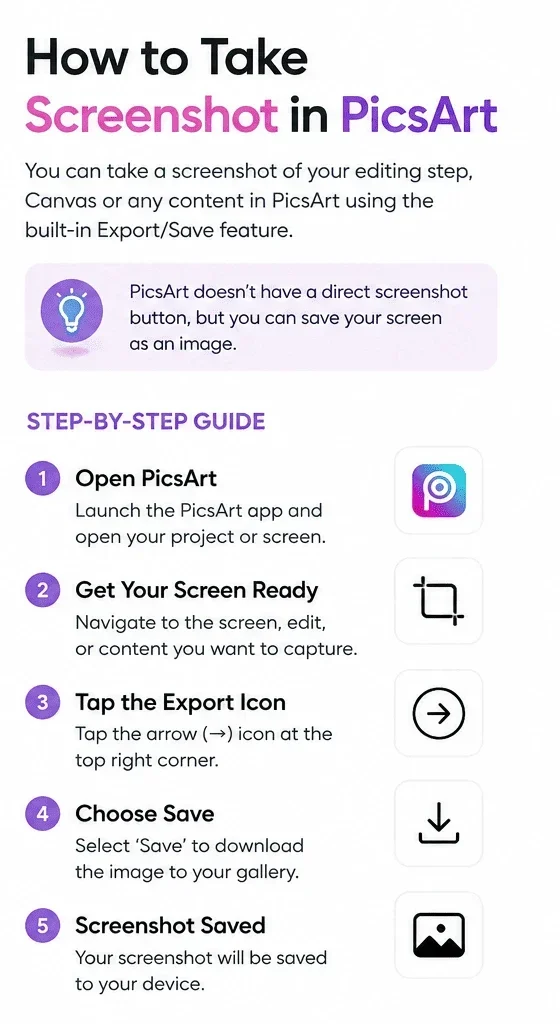
How to Screenshot on PicsArt on iPhone
On an iPhone with Face ID:
The screenshot will automatically be saved to the Photos app.
Using AssistiveTouch
If you don’t want to use physical buttons, you can also enable AssistiveTouch. Go to:
Settings → Accessibility → Touch → AssistiveTouch
You can then take a screenshot action through the AssistiveTouch menu.
If you want a detailed guide on Picsart for iPhone, here is Picsart for iOS
Why Is My PicsArt Screenshot Black?
If the screenshot itself is black while the PicsArt screen looks normal, the issue may not be your screenshot buttons. Possible reasons include the following:
1. Protected App Content
- Some applications can use Android’s screen-protection mechanisms to prevent screenshots or screen recording on particular screens.
- If this is happening, the restriction is controlled by the app or operating system rather than your screenshot shortcut.
2. Device or Android Version
- Screenshot behavior can vary between Android versions and manufacturers.
- A Samsung phone, Xiaomi phone, Pixel device, or another Android model may handle protected content differently.
3. Screen Recording or Display Issues
- Certain overlays, accessibility tools, screen filters, or recording applications can interfere with screenshots.
- If screenshots suddenly stop working, temporarily disable third-party screen-overlay or recording applications and test again.
4. Temporary App Glitch
- A simple app restart can sometimes resolve a temporary rendering problem.
- Close PicsArt completely, reopen it, and try the screenshot again.
What to Do When PicsArt Screenshots Don’t Work
Try these troubleshooting steps in order.
- Try taking a screenshot on another app.
- If screenshots are black everywhere, the problem is probably related to your phone rather than PicsArt.
- If screenshots work normally in other apps but fail only on a particular PicsArt screen, that points more toward content protection or app-specific behavior.
- Very low storage can cause problems when saving screenshots.
- Make sure your device has enough free space.
Can You Screenshot PicsArt Premium or Gold Content?
A paid subscription doesn’t mean that every PicsArt screen blocks screenshots. Some screens may be protected, though. If you can’t take a screenshot, use PicsArt’s Save or Export option instead of trying to bypass the restriction.
Can You Use Screen Recording Instead?
Screen recording is another option for capturing your own editing workflow. If a protected screen cannot be recorded, the resulting video may also show a black or blank area. For normal, unprotected content:
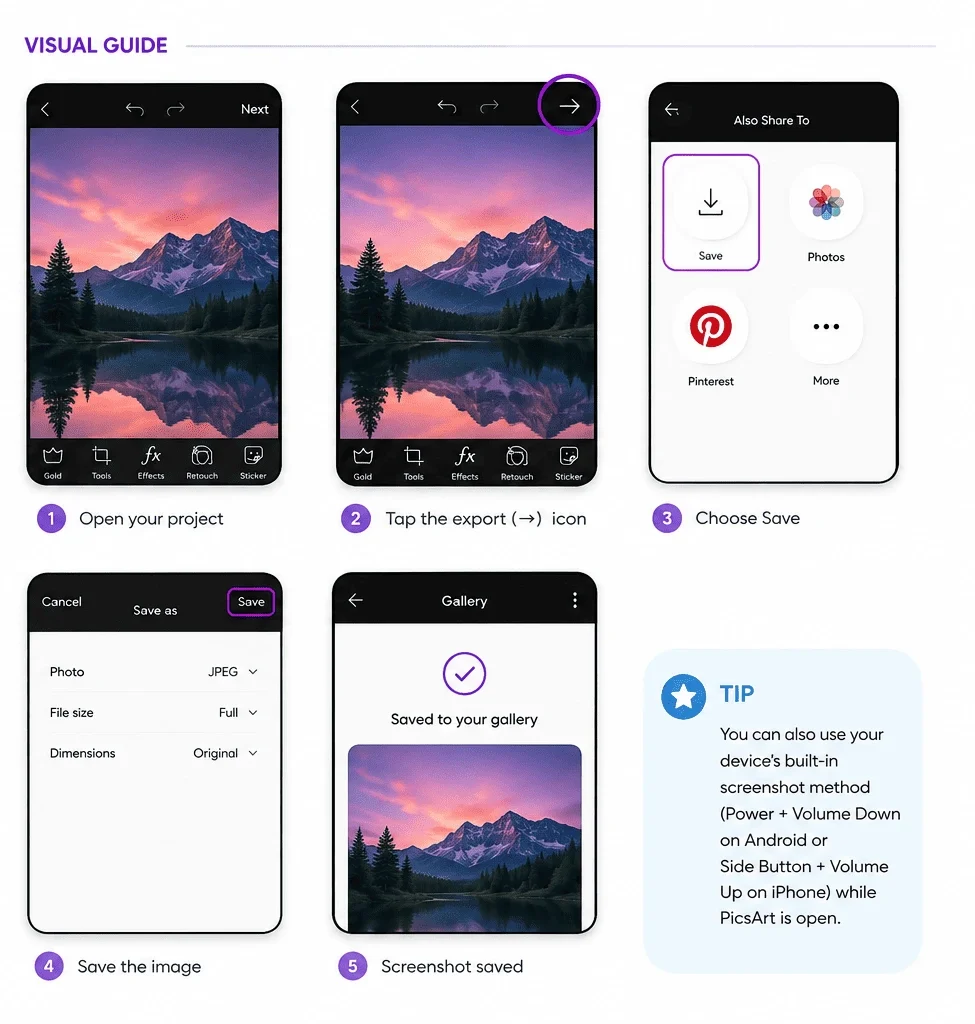
You can also use PicsArt’s own sharing or export options when you need the finished image rather than a screenshot of the editor
How to Screenshot PicsArt on Windows
If you’re using PicsArt on Windows or viewing your project in a browser, you can use Windows’ standard screenshot tools.
Windows + Shift + S
You can also use the Print Screen key or Windows Snipping Tool. The result can still depend on how the application displays protected content.
If you want a detailed guide on Picsart for iPhone, here is Picsart for PC
How to Save a PicsArt Project Instead of Taking a Screenshot?
If your goal is simply to keep the edited image, a screenshot is usually not the best option. Using PicsArt’s available Save, Export, or Share options can provide a better-quality result because you’re saving the actual image rather than capturing the screen. This is especially useful when you need the final image for the following:
A direct export also avoids the lower resolution and interface elements that can appear in screenshots.
Screenshot vs Export: Which Is Better?
|
Method |
Image Quality |
Best For |
|---|---|---|
|
Screenshot |
Depends on screen resolution |
Quick reference |
|
Screen recording frame |
Usually lower than original |
Capturing a video workflow |
|
PicsArt Export |
Better |
Final image |
|
Save Project/Draft |
Preserves editable work where supported |
Continuing later |
What Not to Do?
If PicsArt blocks a screenshot, avoid using unknown apps that claim to remove screenshot restrictions. These apps may ask for unnecessary permissions and could put your privacy or device at risk.
You also don’t need to clear PicsArt’s app data just to take a screenshot. Doing this may delete saved app information and could sign you out.
Conclusion
Learning how to screenshot on PicsArt is straightforward when you’re capturing ordinary, unprotected content. Android and iPhone users can use their standard screenshot shortcuts, while Windows users can use tools such as Snipping Tool or Windows + Shift + S. If a particular PicsArt screen produces a black screenshot, the issue may be related to content protection, device behavior, or the app itself. Instead of trying to bypass a protection mechanism, use PicsArt’s built-in save or export options whenever possible.
For the highest-quality final image, exporting the edited project is usually better than taking a screenshot of the editing screen.