How to Blur a Background in PicsArt? Easy Step-by-Step Guide
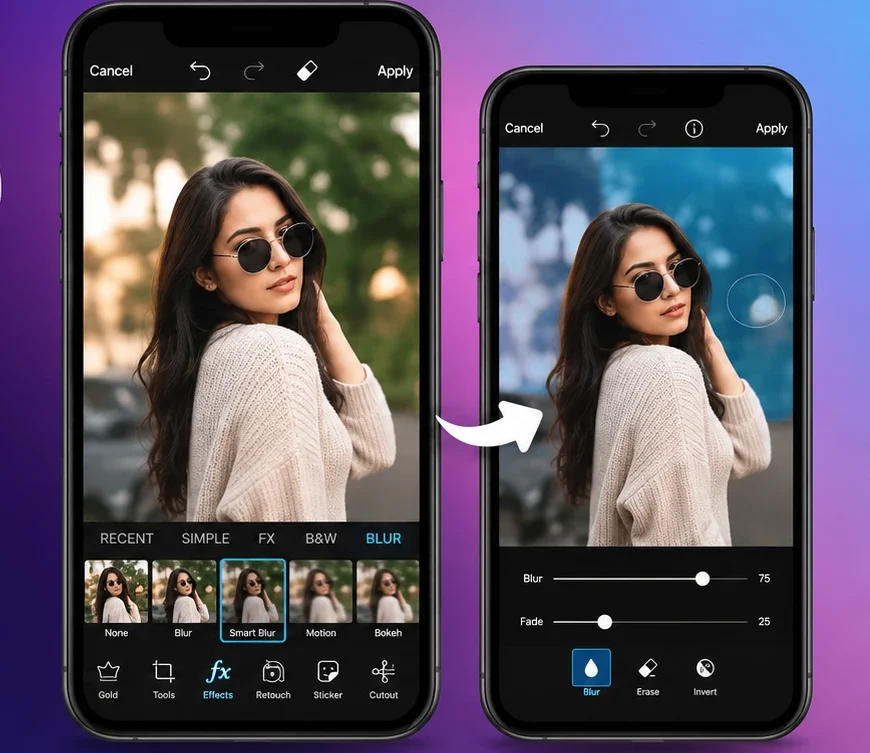
Want to make your photos look more professional? PicsArt makes it easy to learn how to blur background while keeping the main subject clear. Whether you’re editing a portrait, product photo, or social media image, the right blur can instantly improve the overall look.
This guide explains how to blur backgrounds in PicsArt on mobile and PC, with simple steps for beginners.
Why Blur the Background in PicsArt?
Background blur helps bring attention to the main subject and gives photos a softer, more polished appearance. It works well for portraits, products, travel photos, and social media content.
What Can You Do With PicsArt Background Blur?
How to Blur Background in PicsArt?
Follow these steps to blur the background of your photo:
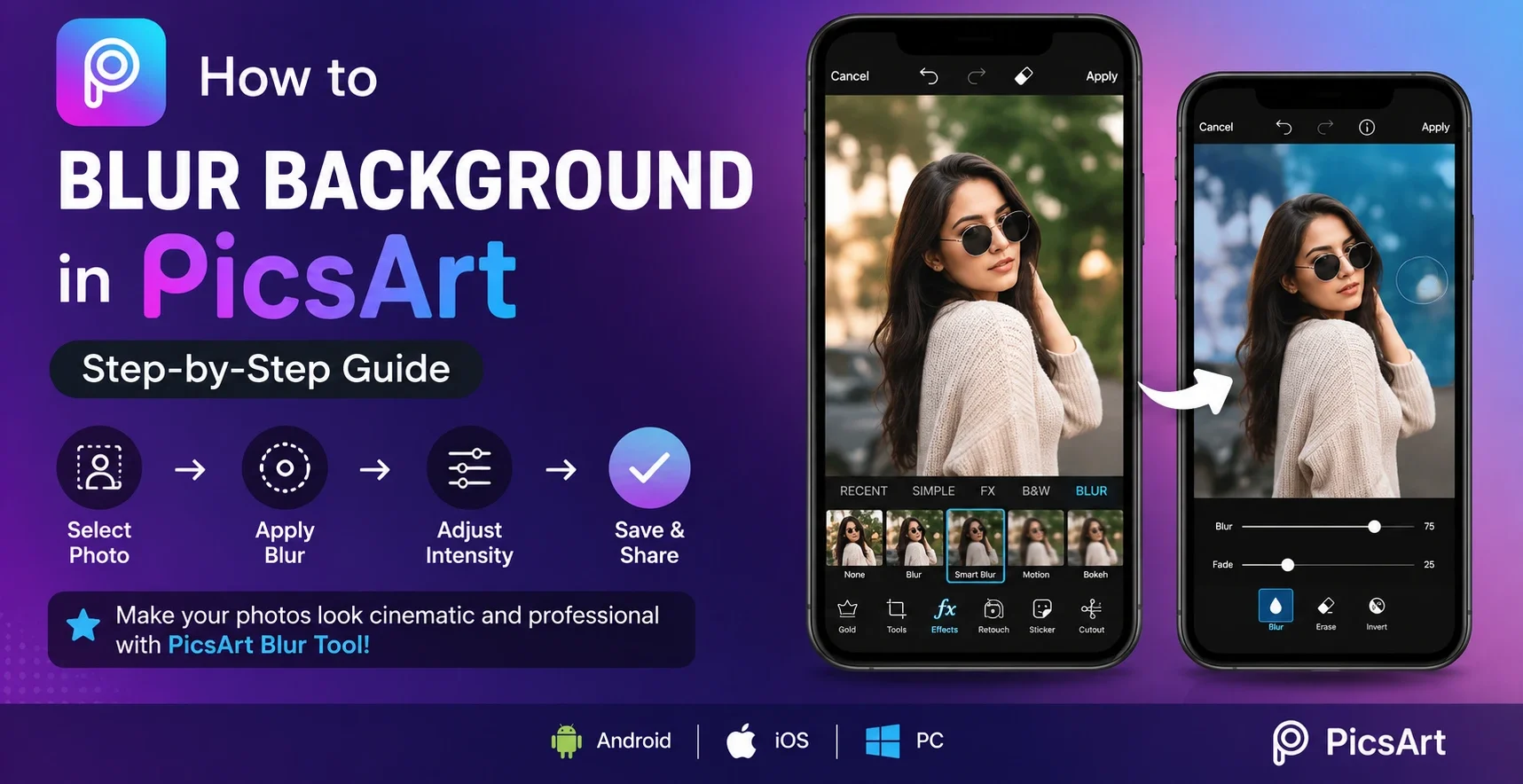
1. Open Your Photo in PicsArt
Open PicsArt and tap Edit. Select the photo you want to edit from your gallery. Choose an image where the subject is clearly separated from the background.
2. Go to the Blur Effect
Open Effects from the editing toolbar and look for the Blur category. Depending on your PicsArt version, you may see different blur effects and adjustment options. Choose the effect that best matches your photo.
3. How to Blur Only the Background in PicsArt?
After applying the blur effect, use the available selection, masking, or erase controls to keep the main subject prominent. Remove the blur from the person’s face, hair, clothes, or the edges of the main object. This creates a more realistic depth effect.
4. Adjust PicsArt Blur Intensity
Use the adjustment controls to increase or decrease the blur strength. For portraits, avoid making the background extremely blurry. A moderate effect usually looks more natural and keeps the subject connected to the scene.
5. Refine the Edges
Zoom into the image and check the edges of your subject. Pay special attention to:
- Hair
- Shoulders
- Hands
- Clothing
- Product edges
Use the erase or masking controls to correct areas where the blur overlaps the subject, lighting, colors, or visual themes.
If you want to learn to remove a background, here is the complete guide on how to remove a background in PicsArt.
How to Blur a Picture in PicsArt Without Blurring the Subject?
The easiest way to apply blur to the background and remove it from the subject is using masking or erasing tools. It works well for portraits. Keep the area around the subject sharp and gradually increase blur as you move toward the outer background.
Can You Create a Bokeh Background in PicsArt?
You can create a bokeh-style appearance by combining background blur with suitable light or glow effects. For the best result:
How to Blur a Background in PicsArt on PC?
You can edit PicsArt projects on a larger screen using the available desktop/web options or an Android emulator where appropriate. The steps are the same:
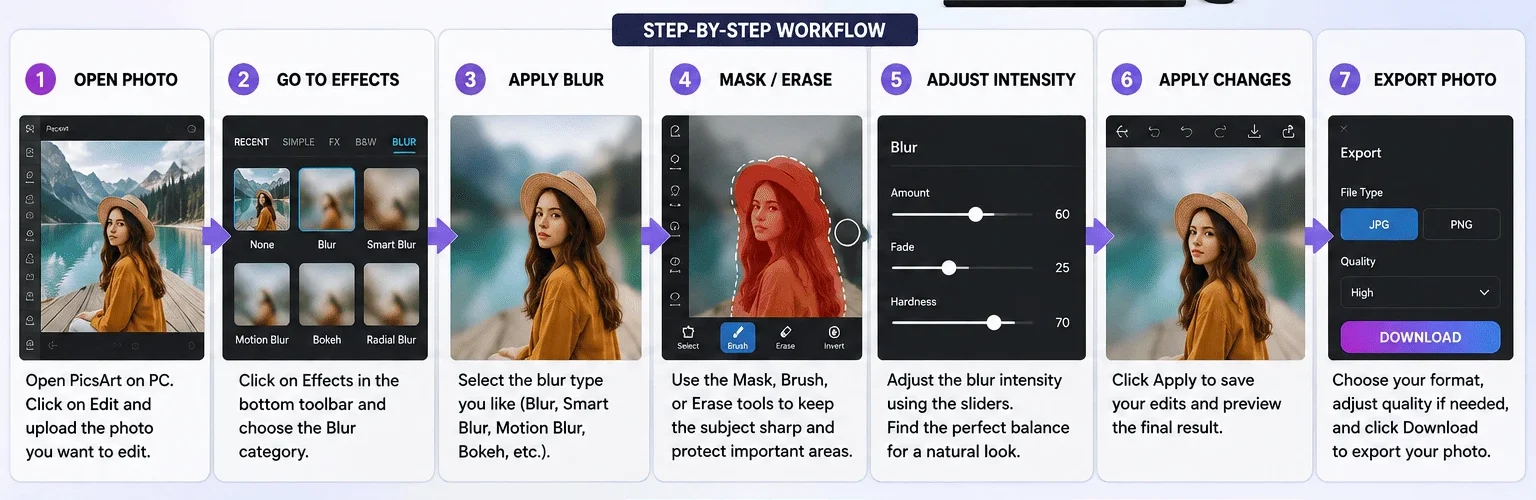
Here is the detailed guide on how to install PicsArt on PC and its use.
Best PicsArt Blur Settings for Portraits
There isn’t one perfect setting for every photo because the right amount of blur depends on the image and background. For a natural portrait:
- Start with a low or medium blur
- Keep the face completely sharp
- Use stronger blur farther from the subject
- Check hair and clothing edges carefully
- Avoid making the entire background look artificially smooth
Can You Blur the Background of a Photo for Instagram?
Background blur works well for Instagram posts, profile photos, Pinterest graphics, and other social content. It can make the subject stand out without requiring a professional camera. For social media, you can combine the blur with text, filters, overlays, or other PicsArt editing tools to create a more polished design.
Final Thoughts
Learning how to blur background in PicsArt is simple once you understand how to apply the effect and refine the subject area. Start with a moderate blur, carefully clean the edges, and adjust the intensity until the background looks natural.
You can create professional-looking portraits, product photos, and social media images directly in PicsArt.